
EmailSentry™ Uninstall/Remove Instructions
There are two versions of EmailSentry, one for Outlook Classic (Classic Outlook for Windows) and one for Outlook (New Outlook for Windows). See the uninstall instructions for each:
- Outlook Classic
- Classic Outlook for Windows
- Outlook
- New Outlook for Windows
Version 02 Outlook Classic (Classic Outlook for Windows)
Microsoft says that all you should have to do to remove any Add-in is use Add/Remove Programs, but we have found it is sometimes important to remove EmailSentry from Outlook first.
Remove EmailSentry from Outlook
- Open Outlook
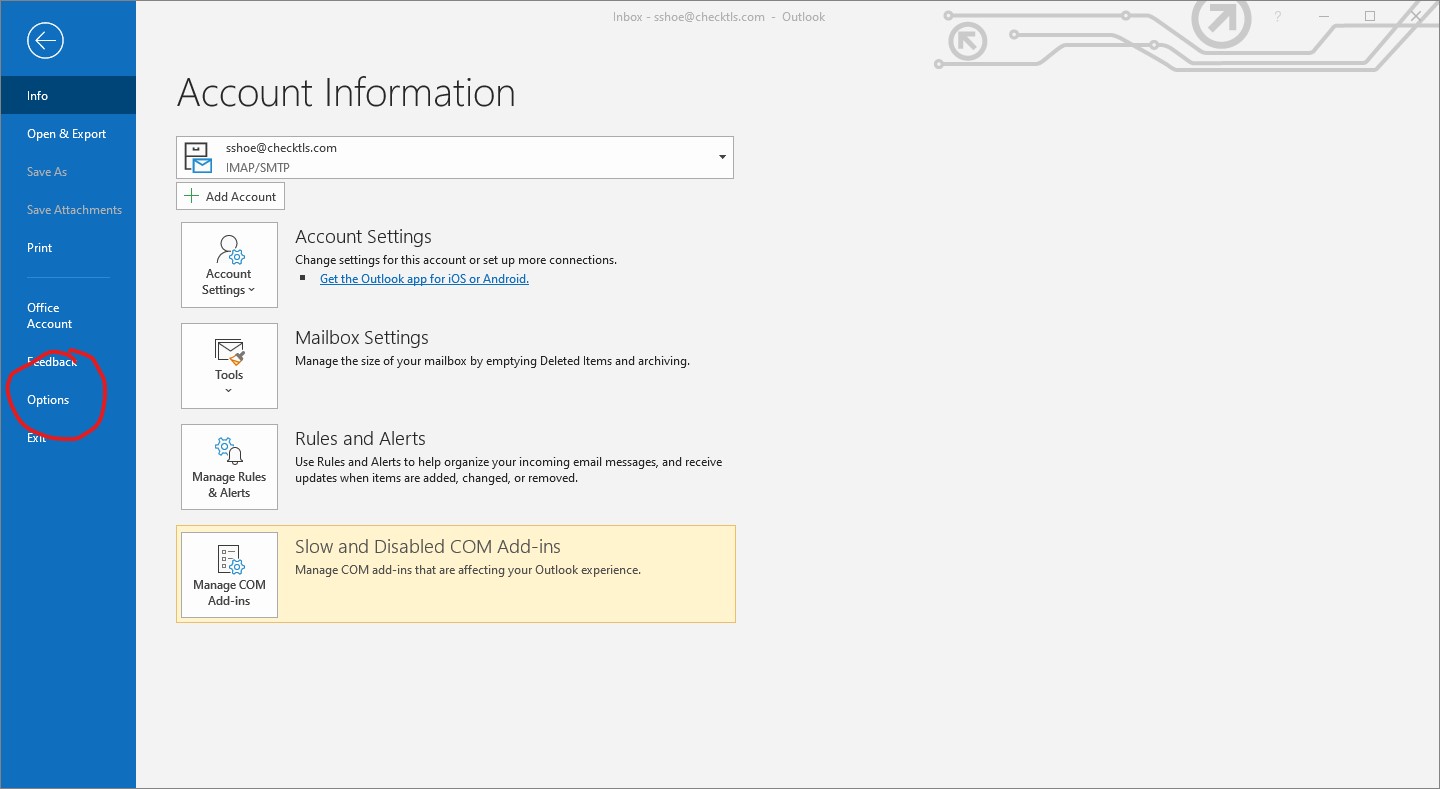
- Open the File menu
- Choose Options
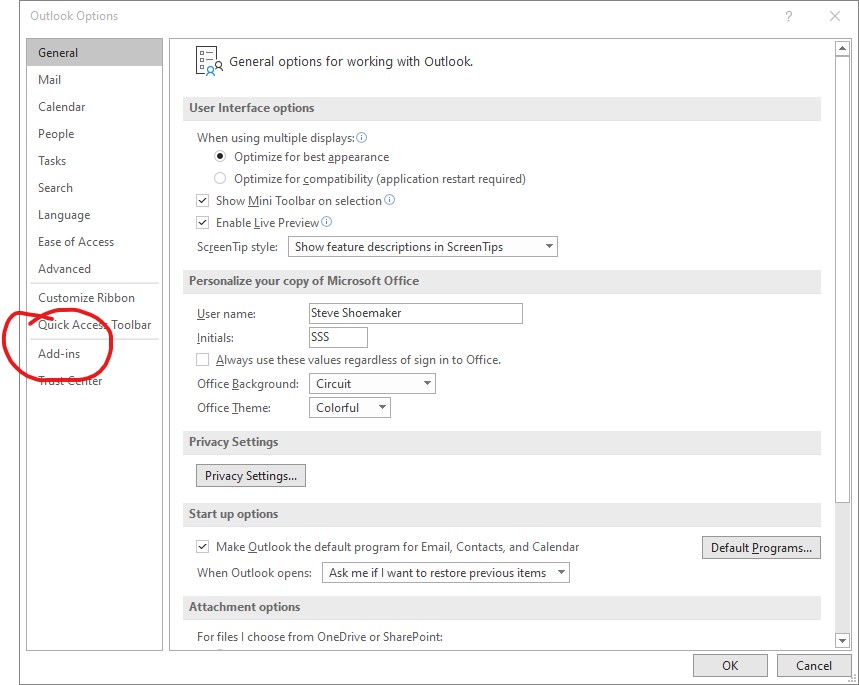
(click to enlarge) - Choose AddIns
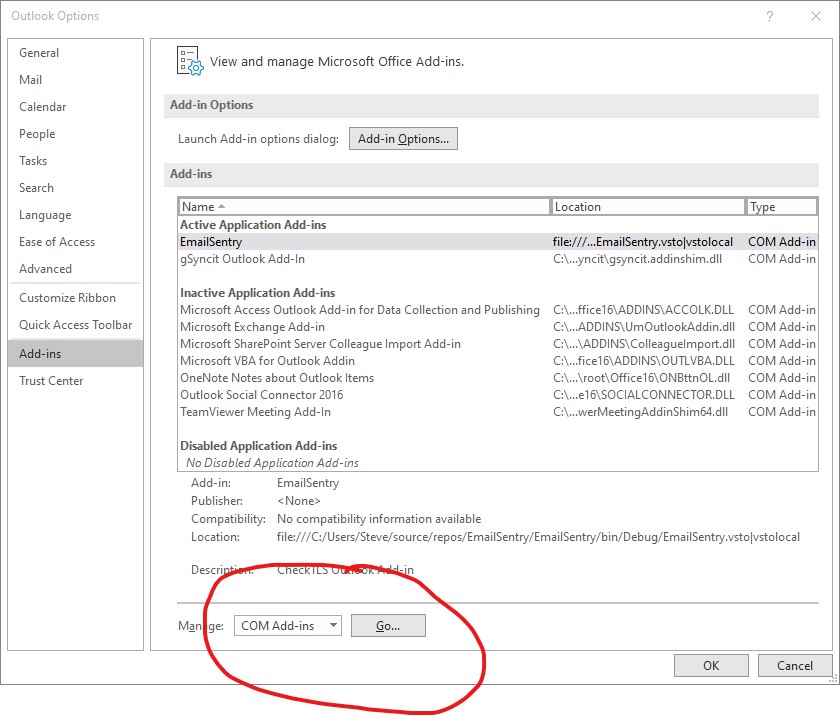
(click to enlarge) - Click the Go... button next to Manage: COM Add-ins
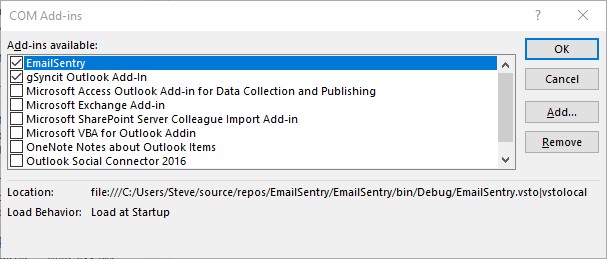
(click to enlarge) - Uncheck EmailSentry and then click the Remove button
(older installs may see "CsCheckTLS_OA" instead of "EmailSentry")
(click to enlarge)
Answer Yes to any "Are you sure?" prompts - Close Outlook
Remove EmailSentry from Add/Remove Programs
-
Open Control Panel and then Add/Remove Programs
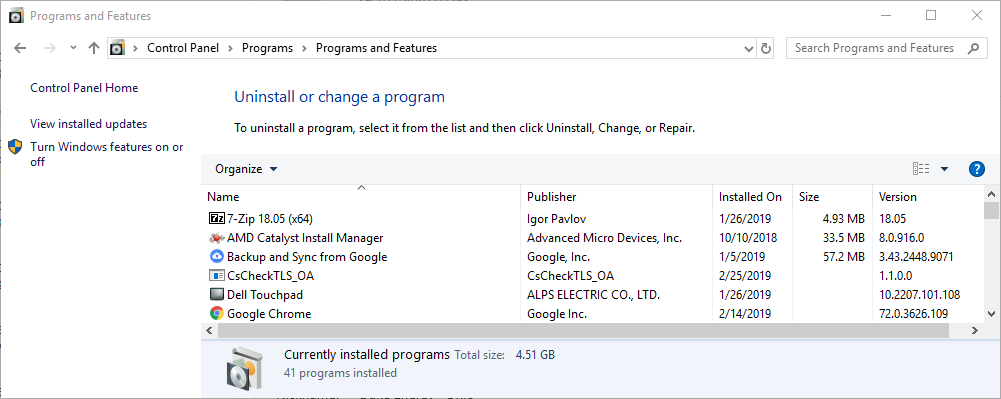
or type "add or remove programs" in Windows Search (the little circle icon second from the left on your windows toolbar) and then press return
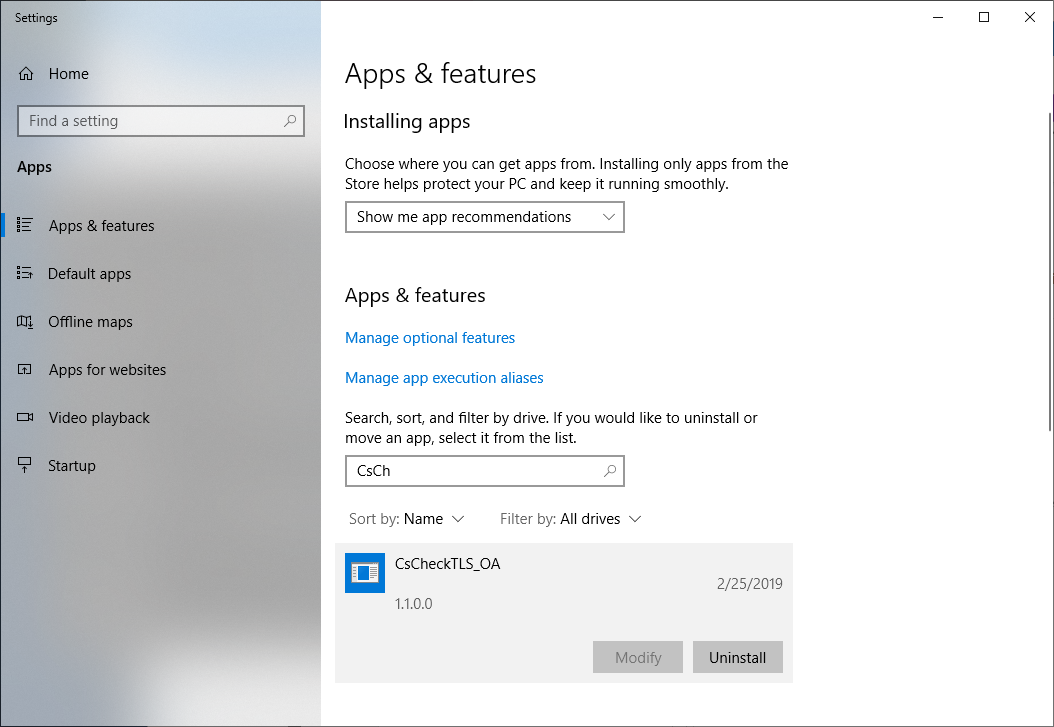
- Give Windows a few seconds to find all the programs on your system, then scroll down to EmailSentry (or CsCheckTLS_OA)
- Left click on EmailSentry (or CsCheckTLS_OA) and choose Uninstall
- Answer yes to any "Are you sure?" questions
- EmailSentry and all its files are removed from your system
Version 03 Outlook (New Outlook for Windows)
See the Delete an add-in in new Outlook at Use Add-ins in Outlook for how to remove EmailSentry.